


🔍 2026 Algorithm Alert: Did Your Post Impressions Suddenly Plummet?
If your LinkedIn posts recently saw a sharp 70% to 90% collapse in impressions, your account may have silently switched its default audience visibility setting from "Anyone" to "Connections only". When restricted to connections only, LinkedIn completely cuts off 2nd- and 3rd-degree algorithmic distribution, hashtag search discovery, and public web indexing. Here is how to diagnose and fix it in under two minutes.
Few things are more frustrating for B2B founders, sales leaders, and consultants than pouring time into writing high-value insights, hitting publish, and watching the post stall at double-digit views. If you have noticed an inexplicable drop in engagement despite consistent posting, the culprit is often not your writing—it is a hidden visibility setting in LinkedIn’s post editor.
LinkedIn periodically updates its mobile app and desktop interfaces. During these interface rollouts, many users report that their post composer silently defaults to "Connections only". This single setting creates an artificial ceiling on your reach, ensuring that only people you are already directly connected with can ever see your content.
In this guide, you will learn the exact step-by-step process to change your LinkedIn post visibility from "Connections only" back to "Anyone", understand how LinkedIn's 2026 feed distribution engine routes content to 2nd- and 3rd-degree networks, and discover how to maximize your organic impressions.
Before publishing any new content, make sure your opening hook does not get cut off awkwardly on mobile screens (~140–180 characters) by testing your draft in Engage AI's free LinkedIn Post Preview & Formatter.
Quick Answer: How to Change LinkedIn Posts from "Connections Only" to "Anyone"
To change your post visibility so anyone on or off LinkedIn can view your content:
- Click "Start a post" at the top of your LinkedIn feed.
- Locate the audience dropdown directly underneath your profile name (it will display either "Anyone", "Connections only", or a group name).
- Click the dropdown to open the "Who can see your post?" modal.
- Select "Anyone" (marked with a globe icon).
- Click "Save" or "Done". LinkedIn will remember this setting as your default for all future posts until manually changed.
How Do I Change My LinkedIn Posts From Connections Only to Everyone?
When preparing a post, clicking into your profile selector reveals the audience controls that govern distribution across LinkedIn's content ecosystem:
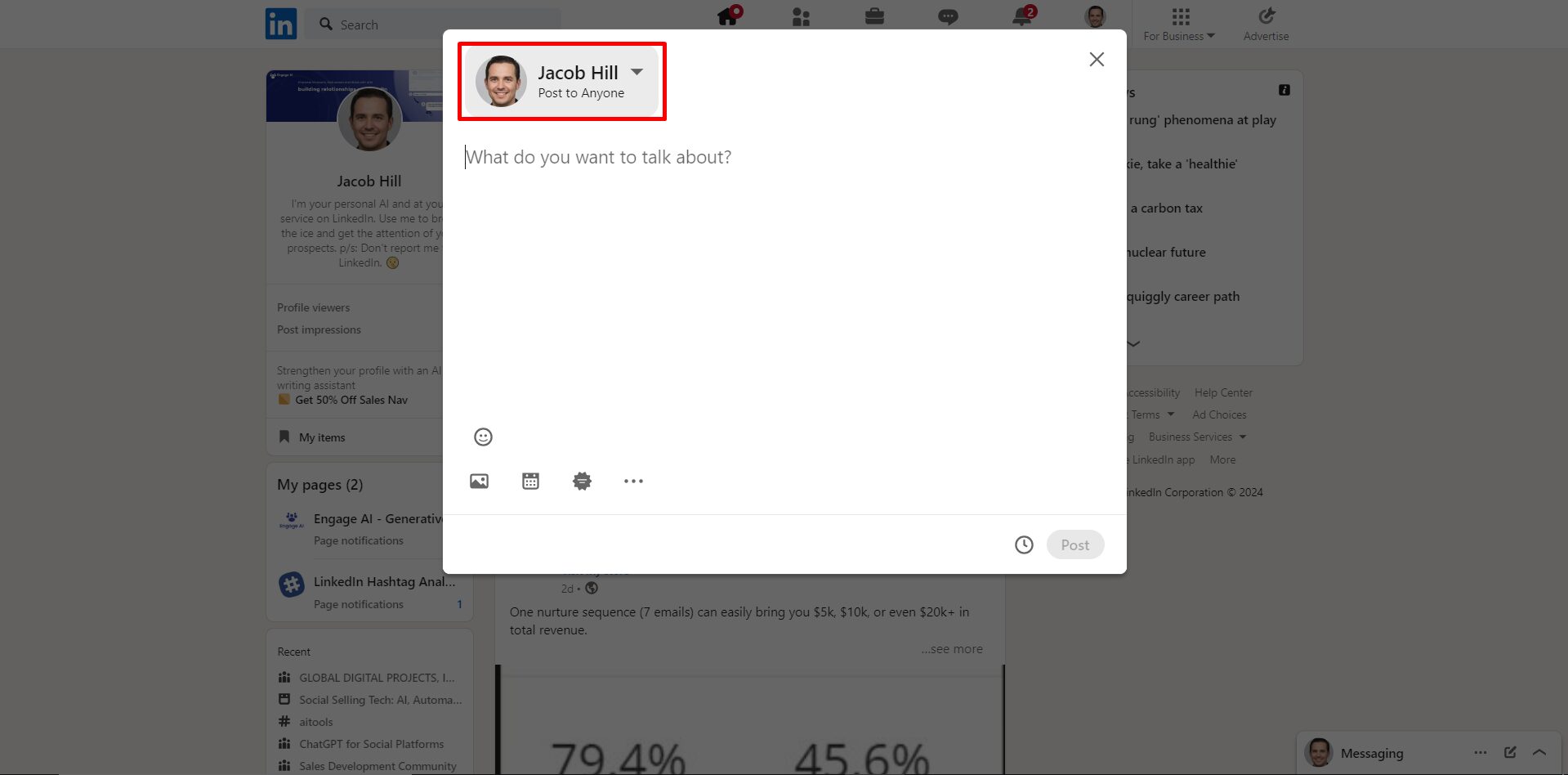
Clicking your audience selector opens the three primary distribution tiers available on the platform:
1. Anyone (Recommended for Organic Growth)
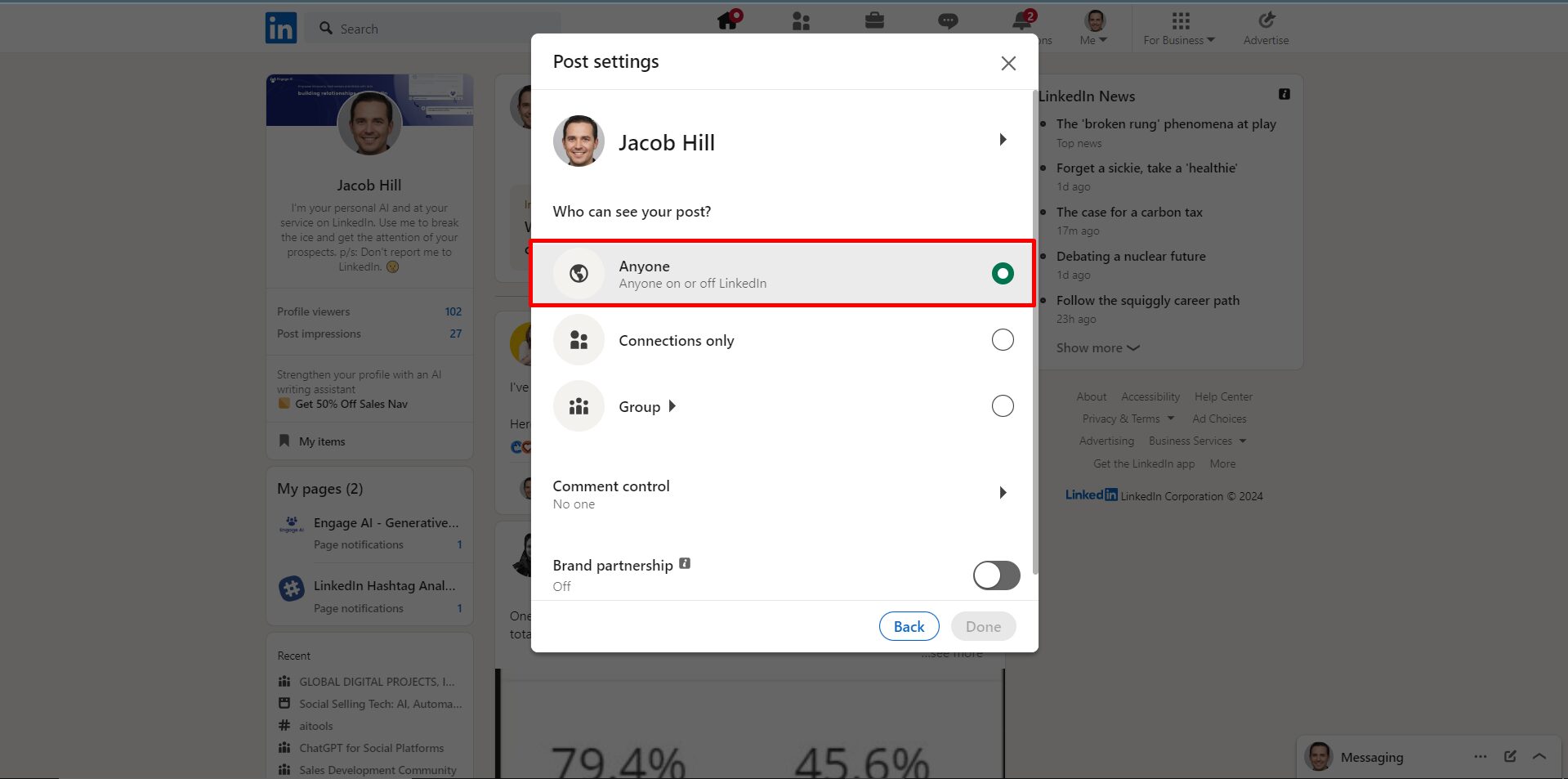
Selecting "Anyone" enables full public distribution. Your post becomes discoverable across all platform surfaces and indexed by search engines. Specifically, your post can appear on:
- 1st-Degree Feeds: The primary homepages of your direct connections.
- 2nd- and 3rd-Degree Feeds: The feeds of professionals connected to your connections whenever your 1st-degree contacts like, comment on, or repost your content.
- Follower Feeds: Members who follow your public activity but have not connected directly with you.
- Keyword & Topic Search: LinkedIn's internal content search results when users query terms discussed in your post.
- Hashtag Feeds: Search discovery pages for any topical hashtags tagged in your copy.
- Your Public Profile & Recent Activity: Viewable by visitors whether they are signed in or browsing as guest web users.
- External Search Engines: Indexed by Google and AI answer engines, allowing off-platform searchers to discover your thought leadership.
2. Connections Only (Restricted Network)
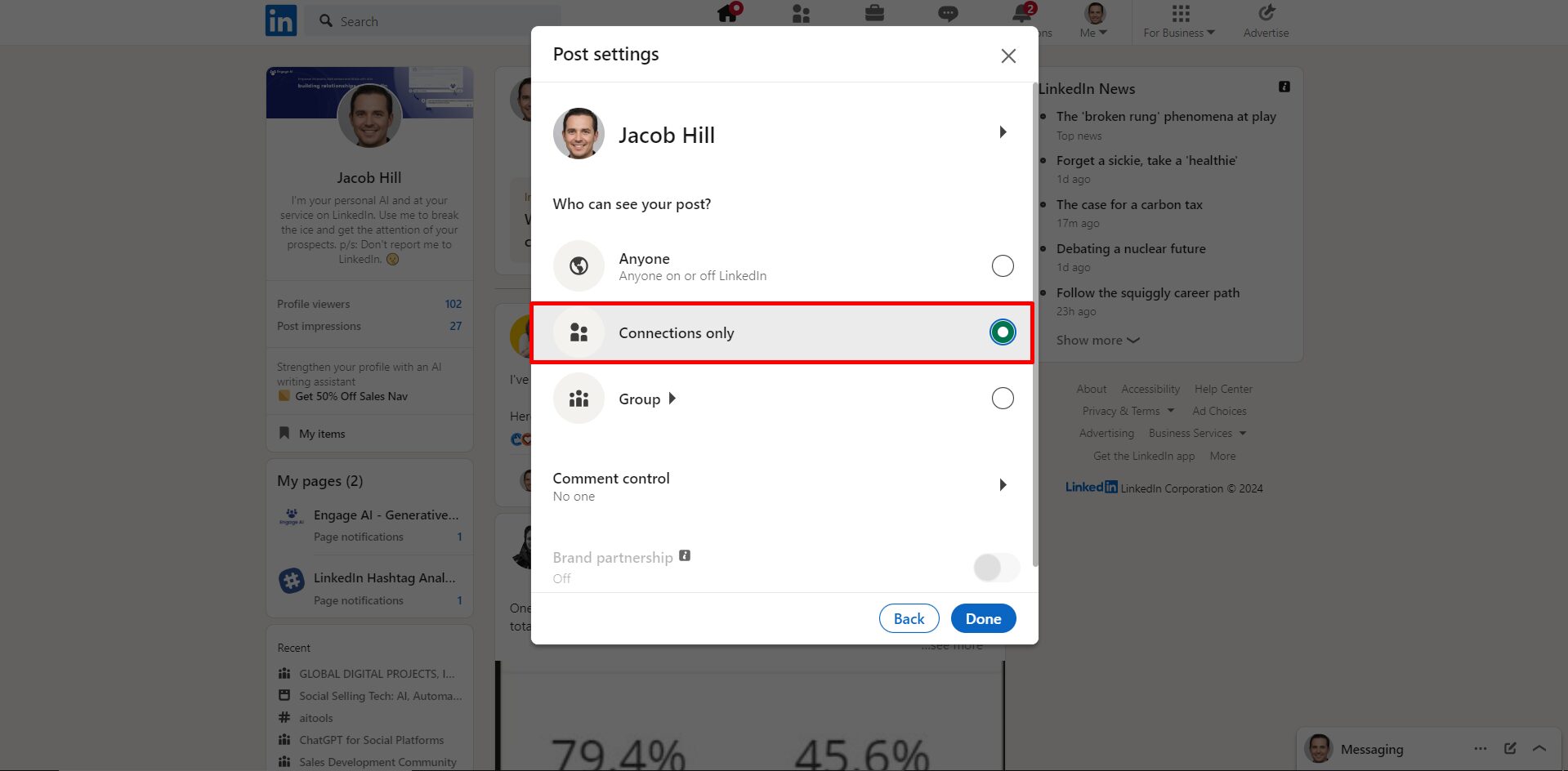
When set to "Connections only", your post is strictly walled off. Only individuals with whom you share a confirmed 1st-degree connection can view the update.
Even if a 1st-degree connection leaves an insightful comment or shares your post, LinkedIn’s algorithm will not amplify the post into their network’s feed. Followers who have not connected with you will not see it, and it will be excluded from public search results entirely.
3. Group
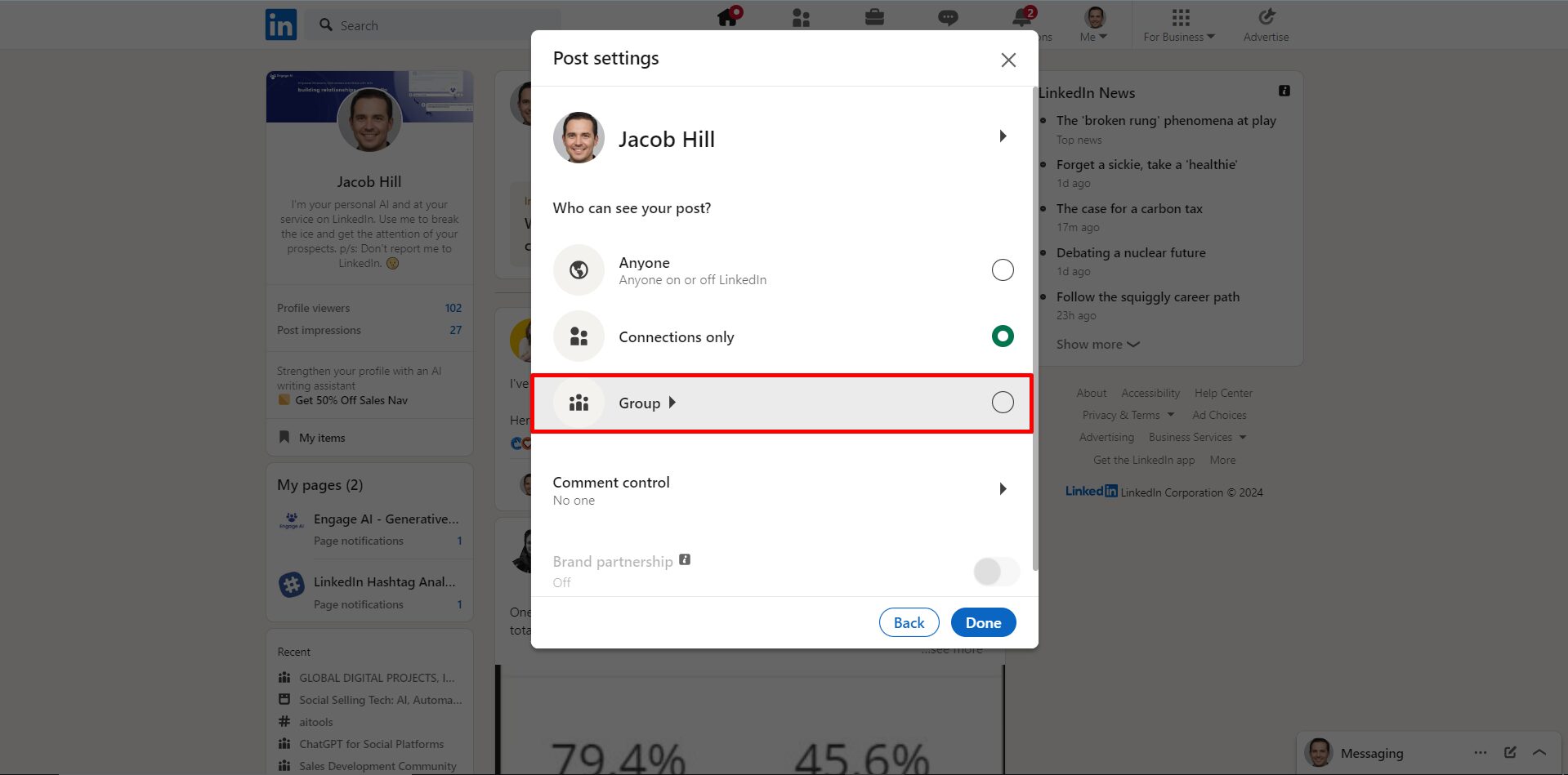
The "Group" setting routes your post exclusively into a specific LinkedIn Group of which you are an active member. The post appears on that group’s community wall and will only surface in member feeds who have high affinity with that group. It remains hidden from your personal profile activity feed and the general public.
4. Comment Controls
In addition to who can view your content, LinkedIn allows you to specify who can leave comments on your post. This setting is located directly below the visibility selection:
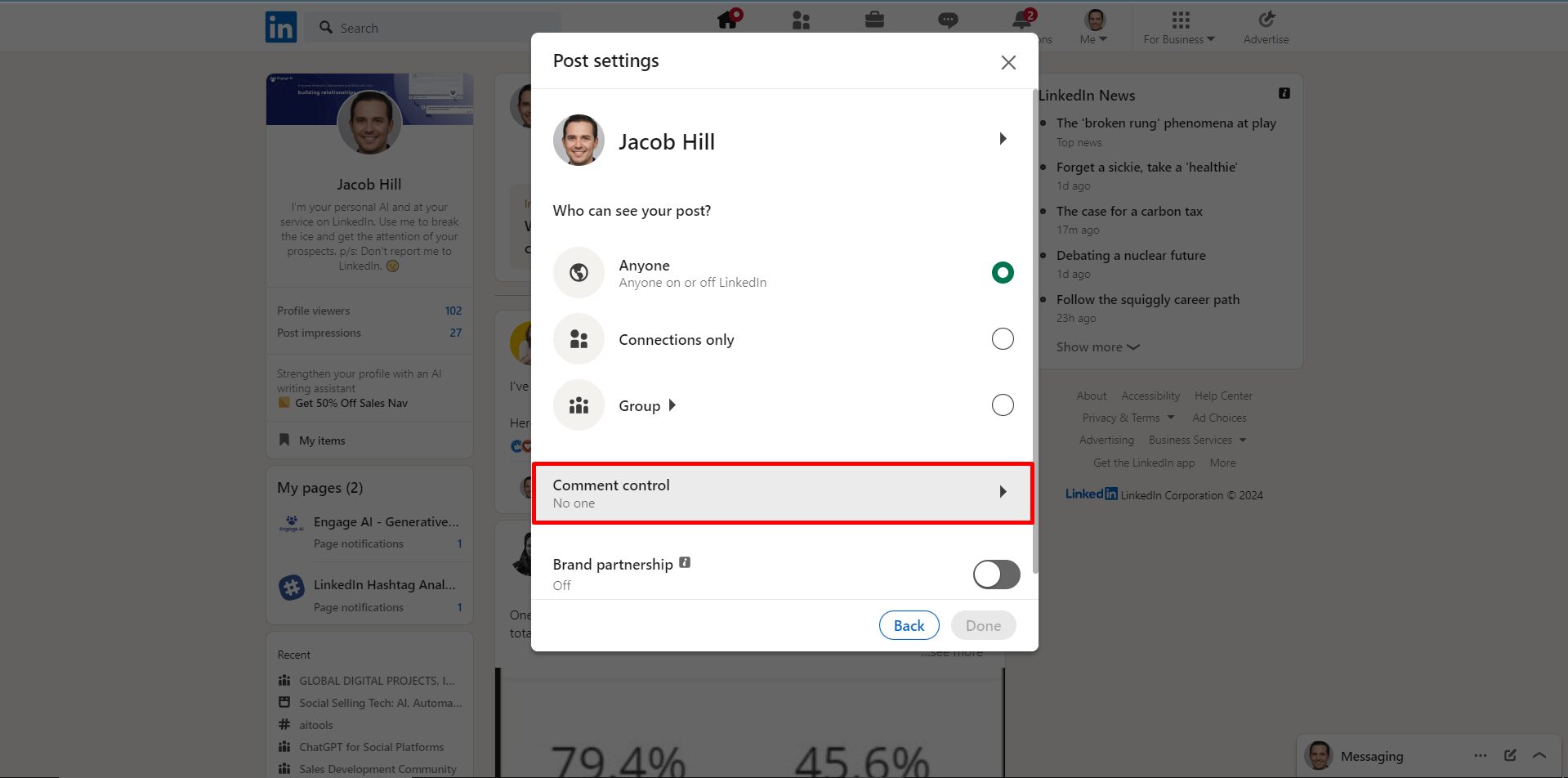
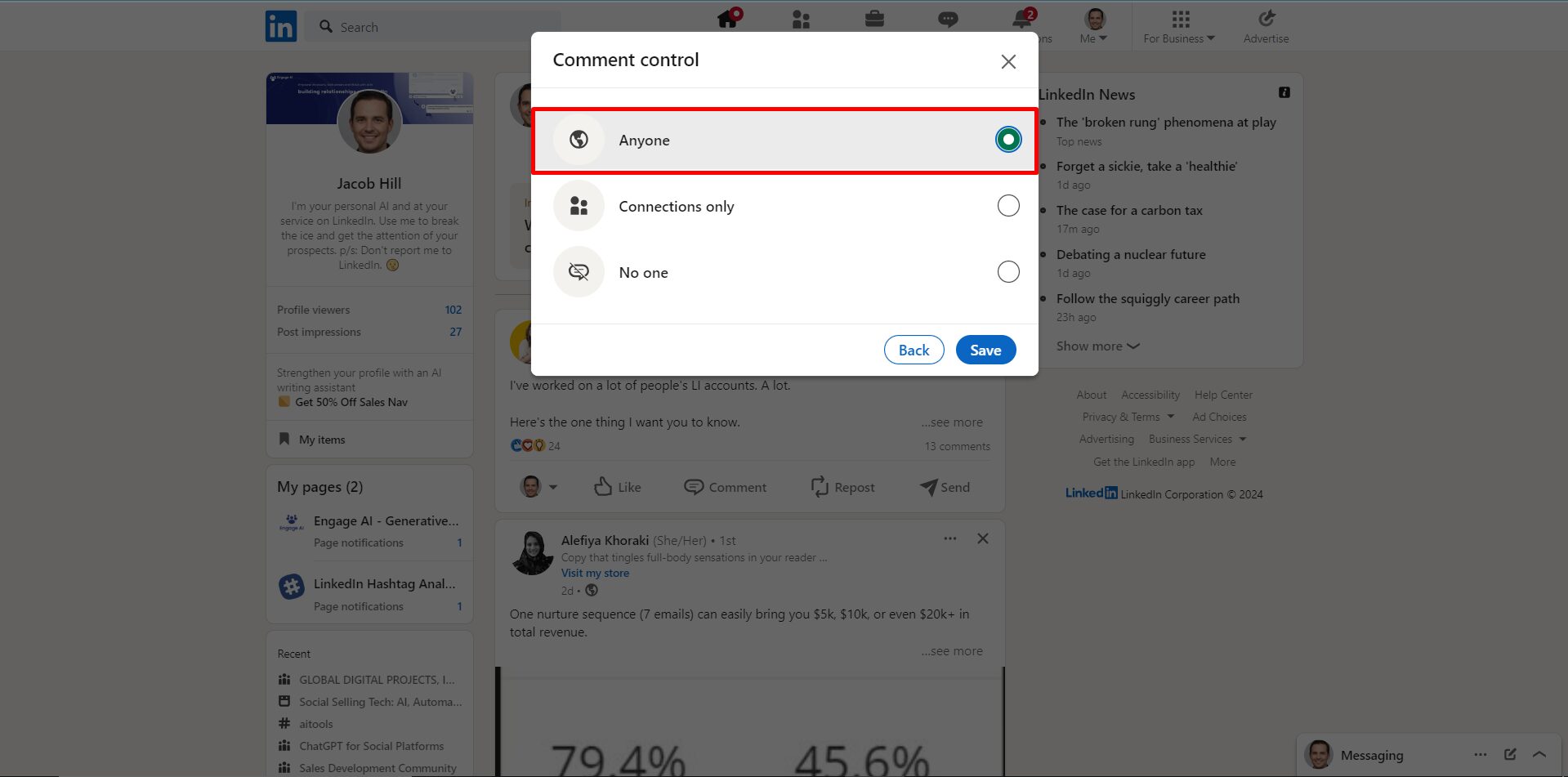
You can toggle comment permissions between "Anyone" and "Connections only", or turn off commenting altogether. If your goal is organic reach, always leave commenting open to "Anyone". In LinkedIn’s feed algorithm, comments from non-connections are the primary vehicle that propels your post into new enterprise networks and industry circles.
LinkedIn Post Visibility Comparison: Anyone vs Connections Only
Understanding the exact functional trade-offs between each visibility setting helps you select the right audience configuration for your specific objectives:
| Feature / Distribution Vector | Anyone (Public) | Connections Only | Group Only |
|---|---|---|---|
| 1st-Degree Feed Delivery | Yes (Full) | Yes (Full) | Only if members of group |
| 2nd- & 3rd-Degree Viral Cascade | Yes (Triggered by engagements) | Blocked (Strictly capped) | Blocked |
| Followers Without 1st-Degree Connection | Yes (Receive in feed) | No (Excluded) | No |
| LinkedIn Topic & Hashtag Search | Indexed | Excluded | Group search only |
| Google & AI Engine Indexing | Crawlable & public | No (Behind login wall) | No |
| Primary Strategic Use Case | Inbound Lead Gen & Thought Leadership | Internal updates & private announcements | Niche community discussions |
Should You Post to "Anyone" or "Connections Only"?
Choosing between "Anyone" and "Connections only" depends on your primary business objective:
When to Choose "Anyone":
- Inbound Pipeline Generation: If you are a founder, consultant, agency owner, or B2B sales professional looking to attract qualified prospects, you must post to "Anyone". Over 80% of high-value inbound leads come from 2nd-degree connections who discovered your post through a peer's comment.
- Thought Leadership & Personal Branding: If you are establishing authority in an industry niche, public visibility ensures your content can be cited, reshared, and indexed across Google search results.
- Talent Recruitment: Hiring announcements published to "Anyone" reach candidates who follow your career journey even if they are not 1st-degree connections.
When to Choose "Connections Only":
- Internal Career News: Sharing confidential personal milestones, internal company announcements, or updates intended strictly for close business colleagues.
- Sensitive Industry Discussions: Discussing niche operational challenges where you want to limit feedback strictly to people you know and trust personally.
The Account-Level Fail-Safe: Managing Who Can Follow You
Beyond post-by-post controls, you should verify your global account follower settings. If your account does not allow public follows, non-connections cannot follow your updates, artificially restricting your organic reach.
Verify your settings directly at https://www.linkedin.com/mypreferences/d/followed:
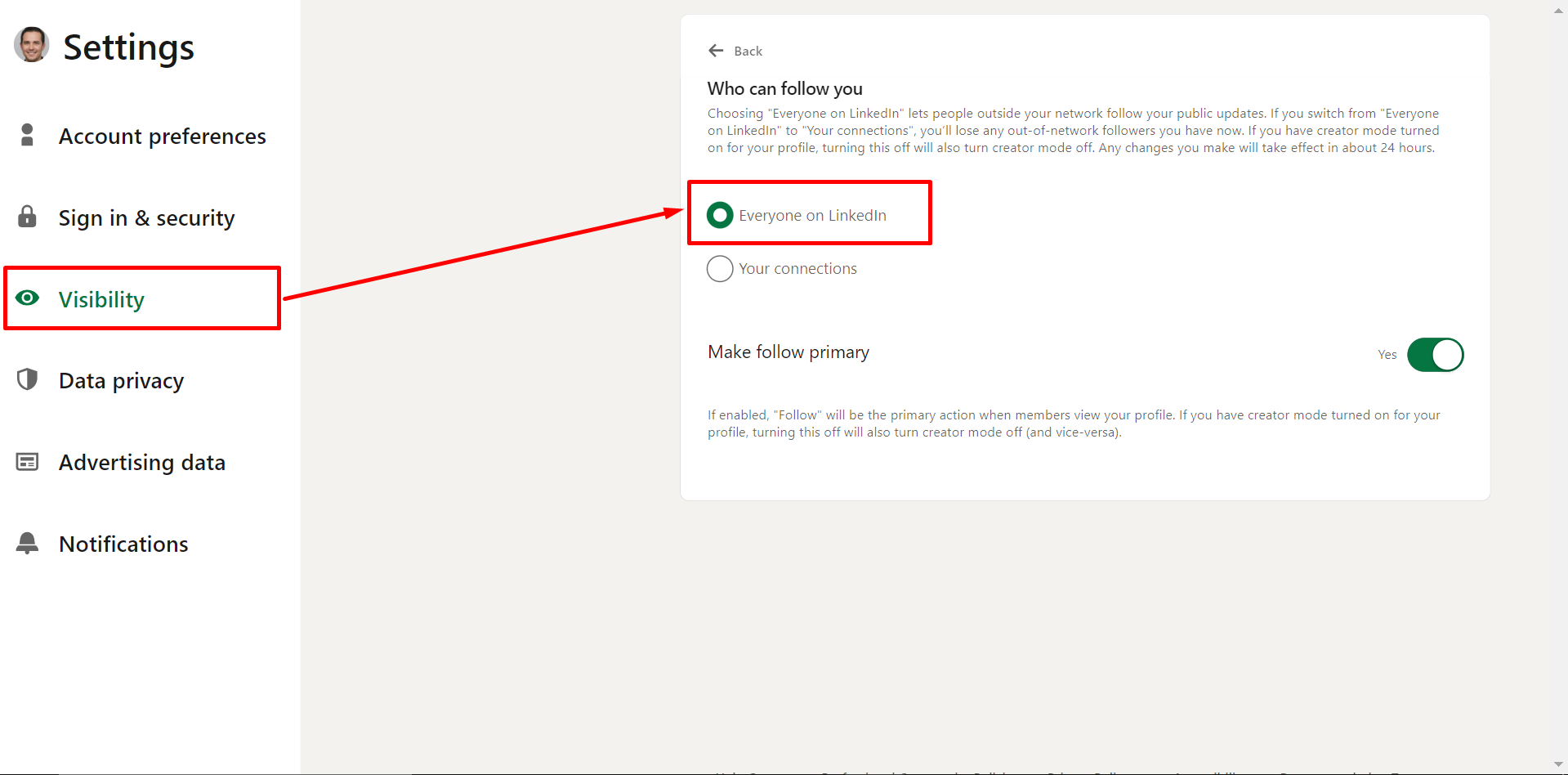
Set "Who can follow you" to "Everyone". This ensures that any LinkedIn member who visits your profile can follow your future public posts without having to send a formal connection request first.
How to Turn "Anyone" Visibility into Explosive Organic Reach
Switching your post visibility to "Anyone" removes the artificial barrier on your distribution. However, simply selecting "Anyone" does not guarantee that your content will be shown to thousands of professionals. LinkedIn's 2026 feed algorithm requires a secondary catalyst: early engagement velocity.
When a post goes live, LinkedIn’s algorithm shows it to a tiny sample batch (typically 5% to 8%) of your 1st-degree connections. If those initial viewers quickly scroll past without interacting, the algorithm concludes the post is low-value and freezes distribution. Conversely, if your post receives thoughtful comments and meaningful dwell time during the first 60 to 120 minutes, the algorithm automatically expands distribution into the 2nd- and 3rd-degree feeds of everyone who engaged.
To overcome this initial distribution hurdle safely, high-performing B2B leaders join the Engage AI engagement community. Rather than relying on chaotic, unmonitored chat groups or risky automation bots that trigger account bans, Engage AI coordinates a structured, reciprocal network of verified business professionals. Posts receive authentic, human commentary following an algorithmic 13-1-1 distribution schedule (13 comments on Day 1, 1 on Day 3, 1 on Day 5)—sustaining organic feed longevity and unlocking consistent inbound opportunities.
Frequently Asked Questions (FAQs)
Why did my LinkedIn post visibility change to "Connections only" automatically?
LinkedIn frequently tests user interface updates across desktop and mobile apps. During these updates, default posting settings are sometimes reset to privacy-preserving defaults like "Connections only". Additionally, if you recently shared a post into a private LinkedIn Group, the post composer may retain that restricted audience setting for your subsequent personal feed posts.
Can I change the visibility of a post after it has already been published?
No. Once a post is published on LinkedIn, its core audience visibility setting (Anyone vs Connections Only vs Group) cannot be modified. If you accidentally published a post set to "Connections only", you must copy the text, delete the post, and publish a new post with visibility set to "Anyone".
Do hashtags work if my post is set to "Connections only"?
No. Hashtags on "Connections only" posts are rendered non-functional for discovery. While your 1st-degree connections will see the clickable tag in the post body, the post will never surface in LinkedIn's global hashtag feeds or topic searches.
How does posting to "Anyone" impact Google search indexing?
Posts set to "Anyone" are rendered on public profile activity pages accessible to web crawlers. Google and AI answer engines can index these public posts, allowing your thought leadership and brand name to rank in organic search results for relevant industry queries.
Conclusion
A sudden decline in LinkedIn post reach does not always point to algorithm penalties or declining content quality. In many cases, it is simply an audience toggle set to "Connections only" that restricts your content behind an invisible wall.
By keeping your default visibility set to "Anyone", leaving comment controls open, and pairing your posts with structured early engagement, you unlock the full viral potential of LinkedIn's multi-degree distribution engine.