

⚡ 2026 Privacy & Notification Protocol Update
LinkedIn's latest interface separates global activity broadcasting from granular per-entry notification toggles. Whether you are discreetly preparing for a career transition, fixing typos in your job history, or refining your headline, this guide covers both desktop and mobile privacy controls to guarantee your updates remain 100% silent.
Your LinkedIn profile should be continuously refined, tested, and optimized. You want your headline and summary to capture attention, your featured projects to showcase recent wins, and your interests to reflect your evolving professional focus.
However, nothing creates awkward workplace friction faster than your current manager or colleagues receiving a broadcast notification that you just overhauled your experience section and job title. Sudden flurry alerts often signal to employers that you are actively interviewing or getting ready to resign.
Fortunately, updating your LinkedIn profile in complete stealth mode takes only a few seconds once you understand how LinkedIn's notification engine triggers alerts.
Quick Answer: How to Update Your LinkedIn Profile Silently
To update your LinkedIn profile without alerting anyone, go to Settings & Privacy → Visibility → Visibility of your LinkedIn activity, and switch "Share profile updates with your network" to Off. Additionally, whenever editing an individual role in your Experience section, make sure the "Notify network" toggle at the bottom of the edit window is toggled Off before saving.
What Triggers a Notification vs. What Is Always Silent?
A common misconception is that every edit on LinkedIn triggers a notification to your network. In reality, LinkedIn treats different profile fields with distinct privacy rules:
| Profile Element | Can It Trigger an Alert to Contacts? | Default Behavior |
|---|---|---|
| New Job / Experience Addition | Yes (High Risk) | Broadcasts to network feed unless toggled off |
| Editing Existing Job Description/Dates | Yes (If "Notify network" is left on) | Prompts notification toggle in edit box |
| Headline & About / Summary | Never (100% Silent) | Updates silently without any feed alert |
| Profile Photo & Background Banner | Never (100% Silent) | Silent by default (no automated feed post) |
| Education & Degrees | Yes (If toggled on) | Controlled by "Notify network" toggle |
| Licenses, Certifications & Skills | Never (100% Silent) | Updates silently without feed notification |
Method 1: Turn Off Global Profile Update Notifications (The Master Switch)
The safest approach is to disable automated network notifications at the account level before making any edits. This ensures that even if you accidentally save a job change in a hurry, LinkedIn will not push an alert to your connections' feeds or notification tabs.
Step-by-Step for Desktop:
- Click on the Me icon at the top right of your LinkedIn navigation bar.

- Select Settings & Privacy from the dropdown menu.
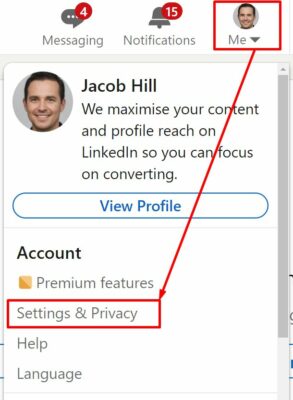
- In the left sidebar, click on the Visibility tab.
- Scroll down to the Visibility of your LinkedIn activity section.
- Locate Share profile updates with your network.
- Click on it and toggle the switch to Off (the switch will turn grey / "No").

Step-by-Step for Mobile (iOS & Android):
- Tap your profile avatar in the upper left corner and tap Settings (gear icon).
- Select Visibility.
- Tap Visibility of your LinkedIn activity.
- Tap Share profile updates with your network and toggle it Off.
Method 2: Check the Per-Entry Toggle When Editing Roles
Even with the global setting enabled, LinkedIn provides a failsafe directly inside the experience editing modal. Whenever you add a new position or edit an existing job title, scroll to the bottom of the form before clicking Save.
Look for the section titled "Notify network" (accompanied by the subtext: "Turn on to notify your network of job changes and education updates"). Ensure this toggle is flipped to Off before saving.
How to Change Your Profile Picture Without Alerting Everyone
In previous iterations of LinkedIn, changing your avatar or headshot automatically posted a message to the newsfeed. Today, changing your profile photo is silent by default. However, when uploading a new picture, LinkedIn will occasionally show a checkbox asking: "Share update with network". Simply leave that unchecked to ensure zero notification is broadcast.
The Stealth Profile Revamp Blueprint: 4 Steps to Upgrade Safely
If you are actively planning a career pivot or discrete job search, updating your profile randomly can raise red flags. Follow this structured blueprint to overhaul your presence quietly and effectively:
- Engage the Master Privacy Switch: Turn off "Share profile updates with your network" first.
- Craft a High-Converting Headline Silently: Your headline is the single most critical factor for recruiter discovery and search rankings. Because headline edits never trigger notifications, take your time experimenting with high-impact title variations. You can use Engage AI's free LinkedIn Headline Generator to formulate punchy, keyword-dense headlines tailored to your industry.
- Refine Your Experience & Impact Bullets: Rewrite your job descriptions to highlight quantifiable outcomes (revenue influenced, processes streamlined, teams led) rather than simple task lists. Keep the "Notify network" toggle switched off for each entry.
- Set "Open to Work" to Recruiters Only: Under your profile header, click Open to → Finding a new job. Under visibility, select Recruiters only instead of "All LinkedIn members". While LinkedIn explicitly attempts to block recruiters at your current company from seeing this tag, it never displays the public green frame on your profile picture.
When Should You Intentionally Notify Your Network?
Stealth mode is crucial while preparing, but strategic announcements are powerful when executed correctly. Once your entire profile is polished, you may want to selectively turn notifications back on when:
- Announcing a Major Promotion or Milestone: Sharing a genuine career achievement establishes authority and prompts congratulatory comments from industry leaders.
- Launching a New Agency or Business Venture: Announcing your new founding role to your existing network can generate immediate warm pipeline and client referrals.
- Publicly Declaring Availability: If you have already transitioned out of a previous position, broadcasting your availability prompts contacts to think of you for open contracts.
Pro Tip: Complete 95% of your profile edits (summary, skills, past roles) in silent mode first. Then, make your single primary job announcement separately. This prevents your connections' notification tabs from being spammed with minor grammatical edits.
Accelerating Visibility Without Spamming Feeds
Updating your profile quietly is the foundation. But waiting passively for recruiters or clients to discover an updated page is rarely enough. To build real momentum, your content and commentary need steady engagement velocity.
By joining a structured peer network like the Engage AI engagement community, your posts and thought leadership receive early, authentic engagement from fellow verified business owners. This signals active authority to LinkedIn's algorithm, organically driving profile visits and inbound inquiries on your terms without ever spamming your coworkers.
To scale your prospect outreach and impress potential partners, you can also Get Started with structured peer engagement, while discovering how to master the LinkedIn algorithm to maintain sustainable organic reach.
Frequently Asked Questions (FAQs)
If I turn off notifications, update my profile, and turn them back on later, will my contacts be notified?
No. LinkedIn only evaluates your notification settings at the exact moment you click "Save" on an edit. Edits completed while notifications are disabled will never be retroactively sent out to your network when you toggle the setting back on.
Does editing my LinkedIn headline notify my connections?
No. Headline updates are completely silent. LinkedIn does not send push notifications, emails, or newsfeed alerts when you change your headline, summary, or skills.
Can my current employer see if I turn on "Open to Work"?
If you select "Recruiters only", LinkedIn takes technical precautions to prevent recruiters associated with your current employer from seeing the badge. However, LinkedIn notes they cannot guarantee 100% privacy if your company uses parent or subsidiary recruiting accounts. Avoid selecting "All LinkedIn members" if you wish to keep your search discreet.
Does deleting a past job from my experience section notify anyone?
No. Deleting previous roles, degrees, certifications, or recommendations is always completely silent and never generates an alert.
Conclusion
Maintaining an up-to-date LinkedIn presence does not require advertising every minor edit to your entire network. By flipping the master privacy switch under Visibility and double-checking the "Notify network" toggle on individual positions, you can optimize your profile with complete confidence. Once your foundation is set, leverage tools like Engage AI's headline generator and join the engagement community to build authentic influence on your own timeline.